
How to See Who Is Connected to Your WiFi Using 10.0.0.1
Are your videos stopping again and again? Maybe someone else is using your WiFi. If your password is weak, or you shared it with a friend once, other people may connect without you knowing. More devices on your WiFi can mean less speed for you, and an unknown user on your network can also be a safety risk.
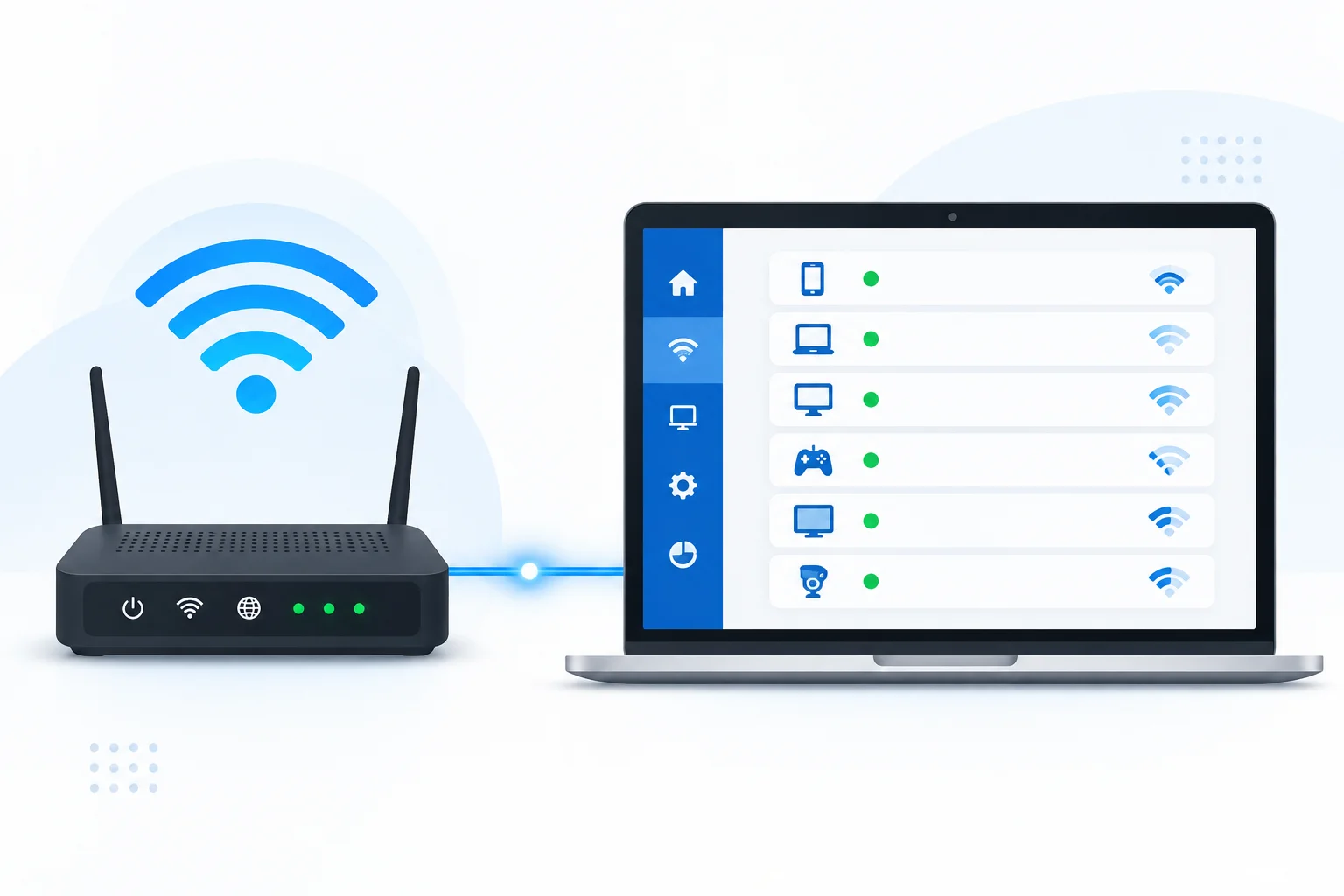
You can check this very easily. Your WiFi router has its own settings page. Open Chrome or any browser on your phone, type 10.0.0.1 at the top, and press Go. Once the page opens, look for the 10.0.0.1 connected devices list. There you can see the phones, laptops, TVs, and other devices using your WiFi.
What Is 10.0.0.1?
The WiFi in your home comes from a small box. This box is called a router. 10.0.0.1 is the number you type to open this box on your phone. Once it opens, you can see who is using your WiFi. You can also change your WiFi password from there.
Lots of WiFi boxes use this number, like Xfinity. If yours uses a different one, look at the back of the box, it is written there. And one more thing, keep your phone on your home WiFi. It will not open on mobile data.
Why You Should Check Who Is on Your WiFi
Here are some good reasons to check:
- Your internet gets slow: Your WiFi is like a water pipe. When many people use it at the same time, less water comes out for you. That is why videos stop and games get stuck.
- Someone may be using it for free: You pay for your internet every month. But a neighbor who knows your password can use it without paying anything.
- Your family stays safer: A stranger on your WiFi could try to get into your phones or computers. If you find one, you can change your password and kick them out.
- Parents can see kids’ devices: You can see which phones and tablets your kids are using on the WiFi. This helps you know what is going on at home.
What You Need Before You Start
You only need three things:
- A phone or a computer. It must be on your home WiFi.
- A browser. This is the app you use to open websites, like Chrome.
- Your router’s username and password. Turn your WiFi box around and look for a sticker on the back. These are often written there. Remember, this password is not always the same as your WiFi password.
Step-by-Step Guide to See Connected Devices
Just do these steps one by one. It is easy.
Step 1: Turn on your WiFi
Your phone or computer should be on your home WiFi. Turn off mobile data.
Step 2: Open Chrome
Open Chrome or Safari, the app you use to open websites.
Step 3: Type 10.0.0.1
At the very top, there is a long white bar. Type 10.0.0.1 there and press Go. Don’t type it in the Google search box.
Step 4: Put in the name and password
A box will ask for a name and a password. Type “admin” for the name and “password” for the password. If it does not open, look at the sticker on the back of your WiFi box. The right name and password are often written there.
Step 5: Find the list
Now look for the 10.0.0.1 connected devices section. On some routers, it may simply be called “Connected Devices” or “Devices.” Tap on it.
Step 6: Check the 10.0.0.1 Connected Devices List
You will see a list of names. These are all the phones, laptops, and TVs using your WiFi. Count them one by one. If you see a name you don’t know, someone else is using your internet.
Tip: Page not opening? Turn off your WiFi box. Wait 30 seconds. Turn it on again and try one more time.
How to Understand the 10.0.0.1 Connected Devices List
The 10.0.0.1 connected devices list shows the devices that are using your WiFi right now.
Every device has a name
Each thing on the list has a name, like “Ali’s iPhone” or “Samsung TV.” Most of the time, you will know them right away.
Every device has a MAC address
Next to the name, you will see a mix of numbers and letters, like “3C:A6:F6:12:8B:90.” This is called a MAC address. It is like a name tag. No two devices have the same one.
Count your devices
Count all the phones, laptops, and TVs in your home. Now count the names on the list. Is the list longer? Then someone else may be using your WiFi.
Strange names? Try this
Some names look odd, and you can’t tell what they are. Turn off one device at home, then check the list again. If a name goes away, now you know which device it was.
What to Do When a Stranger Is on Your WiFi
1. Change your WiFi password
This is the easiest fix. When you change it, everyone gets kicked off your WiFi. Only the people you give the new password to can join again.
2. Block the device
Look next to the strange name on the list. Many WiFi boxes have a “Block” button there. Tap it, and that device can’t use your WiFi anymore.
3. Make a strong password
Never use your phone number as your password. People can guess it fast. People can guess these. Use big letters, small letters, numbers, and signs together, like “Blue@Tree27.” This is much harder to guess.
4. Change the router password too
Remember the name and password you used to open 10.0.0.1? Change that password as well. If you don’t, someone else could open your WiFi page and change things without asking you.
Easy Tips to Keep Your WiFi Safe
Check the list every month
Open the 10.0.0.1 connected devices list once a month and look at the names. If a new one shows up, you will know fast.
Don’t tell your password to everyone
Tell only your family. If a neighbor asks, just say sorry.
Make a Guest WiFi for visitors
Many WiFi boxes let you make a second WiFi just for guests. This way, your friends can use the internet, but they can’t see your phones or computers.
Keep your WiFi box updated.
Updates fix problems and keep bad people out. Many boxes can do this on their own.
Frequently Asked Questions
Turn off your mobile data, join your home WiFi, and try again.
Look at the back of your WiFi box, the password is written there.
Your phone still has the old password, so type the new one and it will connect.
Yes, go to the same page and press “Unblock.”
Conclusion
Now you know how to see who is using your WiFi. It is very easy. Type 10.0.0.1, log in, and look at the list. That’s it! Do you see a phone or laptop that is not yours? No problem. Just change your WiFi password, or block that device. Then it can’t use your internet anymore. Try to check your list once every month. Checking the 10.0.0.1 connected devices list regularly can help you spot a device that should not be there. This will keep your internet fast and your home safe. So go and check your WiFi today!